This is the note for “Introduction to Git and GitHub” lectured by Google.
Find more information on the course page on Coursera
Week1 Introduction to Version Control
1.1 Before Version Control
1 | diff -u 1.py 2.py |
Note the first line 6c6,7 means the 6th line in the original file was changed with the 6,7th line in the new file.
- sign means the lines are deleted and + sign means the lines are added
1 | diff -u old_file new_ file > changes.diff. |
1.2 Version Control Systems
1.3 Using Git
1 | git config --global user.email "me@example.com" |
--global use the same email and name setting for all repositories
1 | git init |
create a new repository/clone an exist repository
init create a “.git” directory which stores all the changes
1 | ls -la |
check the directory
Working tree: the sandbox that the current version is working on
1 | git add 1.py |
add a new file to the staging area
Staging area (index): A file maintained by Git that contains all information about what files and changes going to go into your next commit
1 | git status |
get information of the current working tree and pending changes
1 | git commit |
save changes. a commit message should be added in it (or it would be aborted).
Commit message:
First line is a brief decription of the commit. After the first line comes an empty line. Then a detailed explanation.
Modified: changes (adding, modifying, deleting) are made but not committed yet
Stage: ready to be committed (tracked)
1 | git config -l |
check the current configuration
1 | git log |
show the history of commits (author, date, commit message).
Week2 Using Git Locally
2.1 Advanced Git interaction
1 | git commit -a |
commit -a is a shortcut to stage any changes to tracked files and commit them in one step. (Notice: untracked files won’t be committed.)
HEAD: Git uses HEAD alias to represent the currently checked-out snapshot of your project
1 | git log -p |
shows the actual lines that changed in each commit. git log -p -2 limits the output to the last two entries.
1 | git log --stat |
shows the number of changed files and lines
1 | git diff |
similar to diff -u but shows only unstaged changes by default.
Use git diff --staged to see the changes that are staged but not committed.
1 | git add -p |
shows the changes and ask if we want to stage it or not.
1 | git rm 1.py |
delete a certain file (deleted from the directory) and staged to be committed
1 | git mv original.py new.py |
rename/move the file and staged to be committed
.gitignore/ a file to stored certain rules for Git to skip some types of files for the current repo.
2.2 Undoing things
1 | git checkout 1.py |
revert changes to modify files before they are staged, which will restore the file to the latest storage snapshot. (effectively used to switch branches)
1 | git reset HEAD 1.py |
untracked the changes (basically resets the repo, throwing away some changes)
1 | git commit --amend |
overwrite the previous commit. (Notice: DO NOT use on public repository because the commit ID would change)
1 | git revert HEAD |
creating a new commit that is the oppsite of everything in the given commit. (rollback, Git would show the hash of the commit that it’s reverting to)
Commit ID: 40 characters long. Acually a Hash calculated with SHA1. Hash guarentee the consistency of the history because it’s calculated from all the information that makes up a commit. (commit message, date, author, snapshot)
1 | git revert CommitID |
revert to the specify commit with the commit ID. (intact ID is not required. The first 6-8 characters are enough)
2.3 Branching and Merging
Branch: A pointer to a particular commit. Representing an independent line of development in a project.
master: The default branch that Git creates for you when a new repository is initialized. (Usually it’s the most stable one)
1 | git branch |
shows all existing branches
1 | git branch new-feature |
creates a new branch
1 | git checkout new-feature |
switch to the specify branch. We use git checkout to check out the latest snapshot for both files and for branches.
1 | git checkout -b new branch |
use a one-line command to create a new branch and switch to it.
1 | git branch -d new-feature |
delete a certain branch. If that branch is not merged, use git branch -D new-feature if you are sure that you want to delete it.
1 | git merge new-feature |
merge the specific branch to the master branch.
Merging: The term that Git uses for combining branched data and history together. (Both branches point to the same commit) Git uses two different alogorithms to perform merge:
- fast-forward: both branches doesn’t diverge (linear)
- three-way: branches have diverged and there is no linear path to combine them. Gits find the most recent common ancestor and merge the snapshots. (Merge conflict occurs when two branches have different snapshot on the same part in the same file)
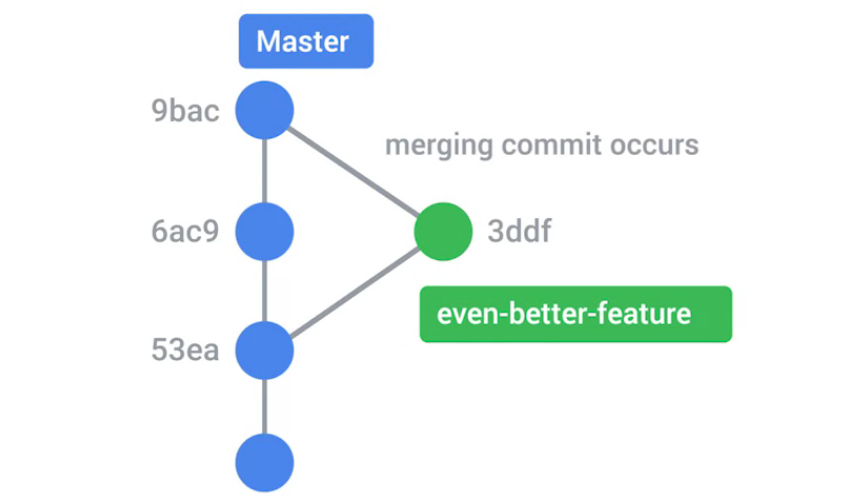
If we use git merge new-feature, Git would show that there is a conflict when attempting to automatically merge them. Then when you open the file, the editor would add some information showing where the conflict is. It needs to be modified manually.
After modifying, use git add filename to stage it.
1 | git log --graph --oneline |
show the commits as graph.
1 | git merge --abort |
throw the merge away and start over.
Week3 Working with Remotes
3.1 Intro to GitHub
Distributed: Each developer has a copy of the whole repository on their local machine.
1 | git clone url <directory> |
clone the existing repos from the url to the directory
1 | git push |
push the local snapshot to the remote repos
1 | git config --global credential.helper cache |
avoid typing account and password each time for 15min. (or SSH key instead)
1 | git pull |
retrieve new changes from the repos
3.2 Using a Remote Repo
1 | git remote -v |
shows the configuration for the remote
1 | git remote show origin |
shows detailed information of “origin”. A way to check whether the current repo is up-to-date or the existing branches. (Git won’t keep remote and local branches in sync automatically)
1 | git branch -r |
shows the remote branches that our Git repo is currently tracking. (read-only) Notice that you should pull the remote branch and merge it locally first. Then push it back to its origin to change the remote branch.
Also, git status would show whether the current repo is the same as the remote repo.
1 | git fetch <origin> <branch> |
copies the commits done in the remote repo. Download the remote branches on our repo. (not automatically mirrored to our local branches)
Notice that if we don’t specify the branch name, this would retrieve all the branches
1 | git log origin/master |
show the info of remote repo: “origin/branch”. Use git status then Gits would notice that your branch is behind “origin/branch” by some commits, or have merge conflict.
1 | git merge origin/master |
merge the remote branch to the local branch.
1 | git pull |
fetch the remote branch and merge to the local master branch.
(fetch+merge)
git remote update is similar to git fetch -all
3.3 Solving Conflicts
Before attempting to push new features, we need to first integrate the remote changes. (git pull)
1 | git log --graph --oneline --all |
shows the different commits and positions in the tree
1 | git log -p origin/master |
find the conflict and manually solve the merge conflict issue. (>>> is the sign for merge conflict)
1 | git push -u origin/feature |
-u sets an upstream to the remote following branches. (i.e. the branch “feature” and “origin/feature” do not relate to each other. By setting an upstream, the relation is set and we may simply use git push for “feature” to comit to “origin/feature” next time)
1 | git checkout feature |
Rebasing: change the base commit that’s used for our branch. (CAUTION: Rebasing would rewrite the history of our branch. Only use this on local branch: rebase the branch, merge to the master then delete the old one.)
If change the base of 4a2c to 75ed:
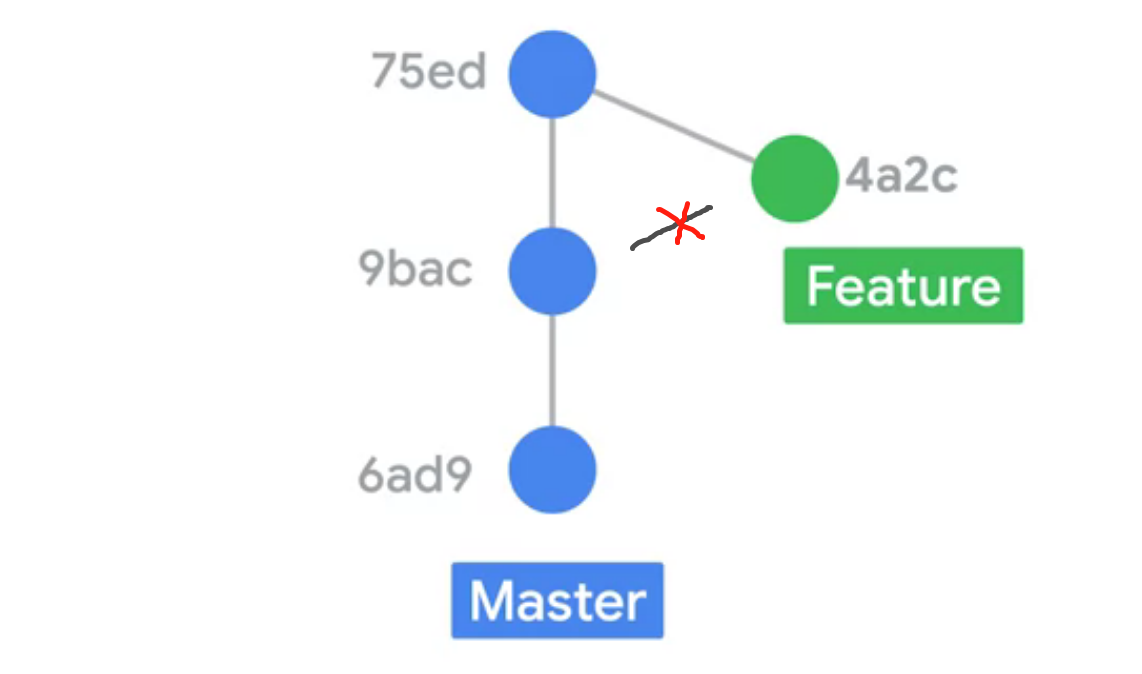
origin path: 9bac->4a2c & 9bac->75ed
new path: 9bac->75ed->4a2c
1 | git checkout master |
After rebasing, we could merge the feature to the master branch with fast-forward approach. Then the “feature” branch is just the same as the master branch. (which means that we could delete it)
If there is a conflict when attempting to rebase the commit:
- fix the conflict
- skip the conflicting commit
- abort the rebase
1 | git rebase --continue |
after the conflict is fixed, retry the rebase step.
Some tips:
Regularly merge changes made on the master branch back onto the feature branch.
Have the latest version of the project in the master branch and a stable version of the project on a separate branch.
You shouldn’t rebase changes that have been pushed to remote repos.(还没有与他人共享之前,commit history是你私人所有的,那么想怎么改写都可以)
Week4 Collaboration
4.1 Pull Requests
Forking: A way of creating a copy of the given repo so that it belongs to our user
Pull Request: A commit or series of commits that you send to the owner of the repo so that they incorporate it into their tree
First fork the repo on GitHub, clone it, create a new branch then do the work.
After the changes are done, commit and push to our repo. Then we could open a pull request on GitHub website.
1 | git rebase -i master |
-i Interative mode. Changing the “pick” parameter to squash two changes.
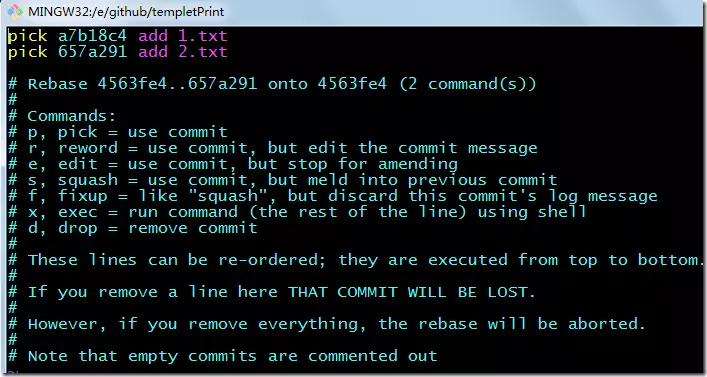
由于rebase是在本地未提交的commits中进行的,这里的合并不会出现分支问题
1 | git push -f |
replace the old commits with the new one (the divergency is discarded)
1 | git remote add upstream url |
In terms of source control, you’re “downstream“ when you copy (clone, checkout, etc) from a repository. Information is flowed “downstream” to you.
When you make changes, you usually want to send them back “upstream“ so they make it into that repository so that everyone pulling from the same source is working with all the same changes.
4.2 Code Reviews
Code Review: Going through someone else’s code, documentation or configuration and checking that it all makes sense and follows the expected patternes
总之就是在pull request和repo owner交流看owner想怎么改代码,改好了就git commit --amend 然后重新push上去,点掉resolve comments表示已经修改了。类似甲方和乙方的交流()
4.3 Managing Projects
Tracking Issues: GitHub上面的issue项,一般是一些bug、建议和新功能需求的反馈
include Closes #4 into the commit message. Then once this commit is merged, the #4 issue would be automatically closed.
Continuous Integration(CI): Will build and test our code every time there’s a change
Once we have our code automatically built and tested, the next automation step is continuous deployment/continuous delivery(CD), which means the new code is deplyed often
may use Travis (GitHub doesn’t offer any CI/CD system)
Pipelines: Specify the steps that need to run to get the result you want
Artifacts: The name used to describe any files that are generated as part of the pipeline
Make sure the authorized entities for the test servers are not the same entities authorized to deploy on the production servers.
Always have a plan to recover your access in case your pipeline gets compromised.
大体上是一个自动化流程,在VSC上完成代码修改后自动进行测试和部署,以达到快速得到反馈的目的。